Auto-fill
Crossword Wrangler can use its word search capabilities to automatically fill the entire crossword grid with answers, while retaining any letters you have already entered.
The tool makes use of the scoring (where available in the currently selected word list) to prioritize higher-scoring words when filling the grid. Scored word lists generally score word on a 1-100 scale, with higher scores indicating more frequently used words.
The tool is probabilistic, so while higher-scoring words are generally preferred, there is still some variation in the words chosen for the grid. The probability distribution it uses prioritises high-scoring words, while preferring to avoid the highest-scoring words like ‘THE’ and ‘AND’.
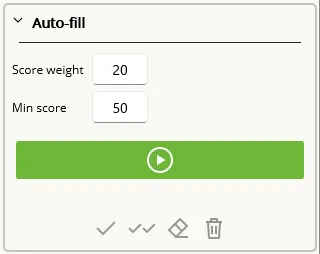
This distribution can be tailored through two numeric inputs: Score weight and Min score. The former controls how much weight the tool should put into word scores. A Score weight of 0 effectively ignores word scores, while higher values give more importance to higher-scoring words.
The Min score sets a threshold below which words will generally be avoided, helping to filter out low-quality or uncommon words.
Running the auto-fill
Section titled “Running the auto-fill”Prior to running the auto-fill tool, you may wish to enter some words or letters into the grid that you want to remain fixed, as the tool will respect any existing entries.
To run it, open the Word Tools tab in the side panel and select the Auto-fill tool. Adjust the Score weight and Min score inputs as desired, then click the “Go” button. The tool will attempt to complete the grid within the given constraints.
Working with the results
Section titled “Working with the results”Fill failed
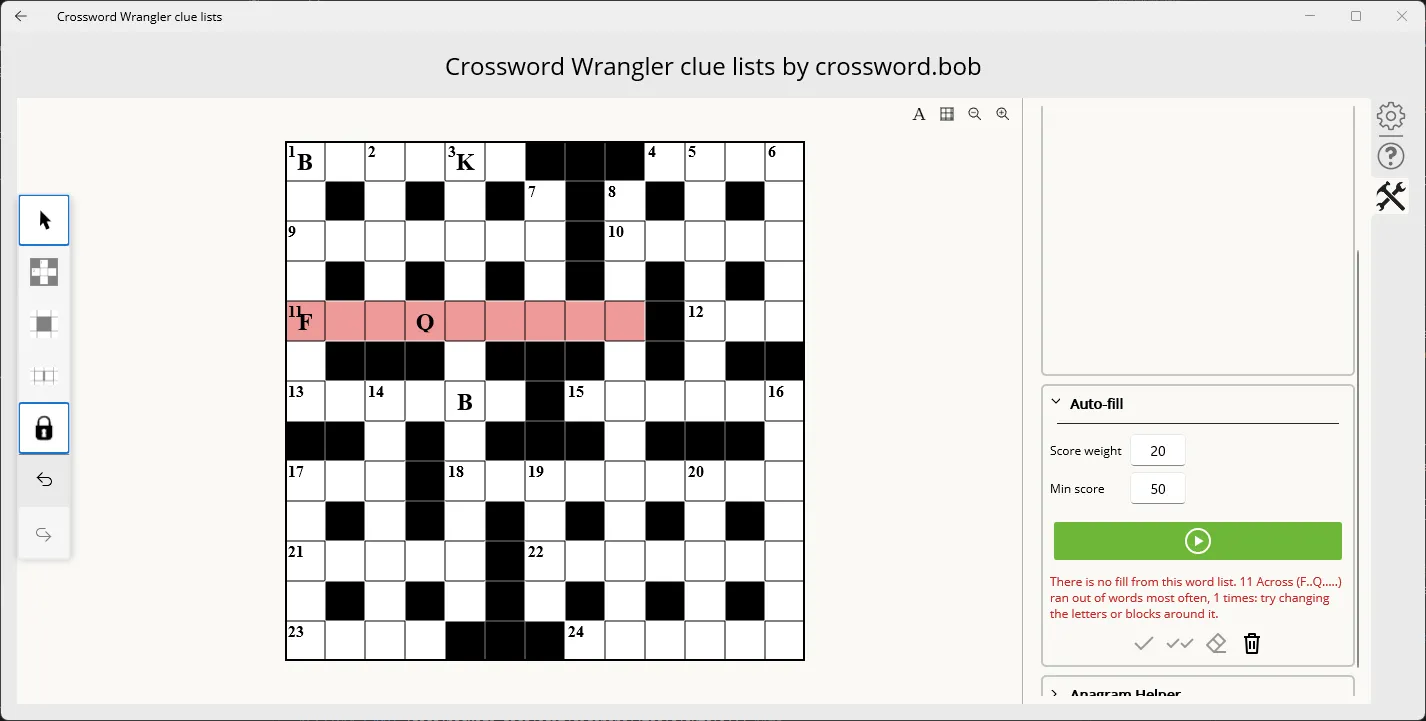
Section titled “Fill failed”If the auto-fill tool is unable to fill the grid within 30 seconds (or runs out of possible words to place), it will stop and highlight the light that indicates the most troublesome light it found during the attempt:
Fill succeeded
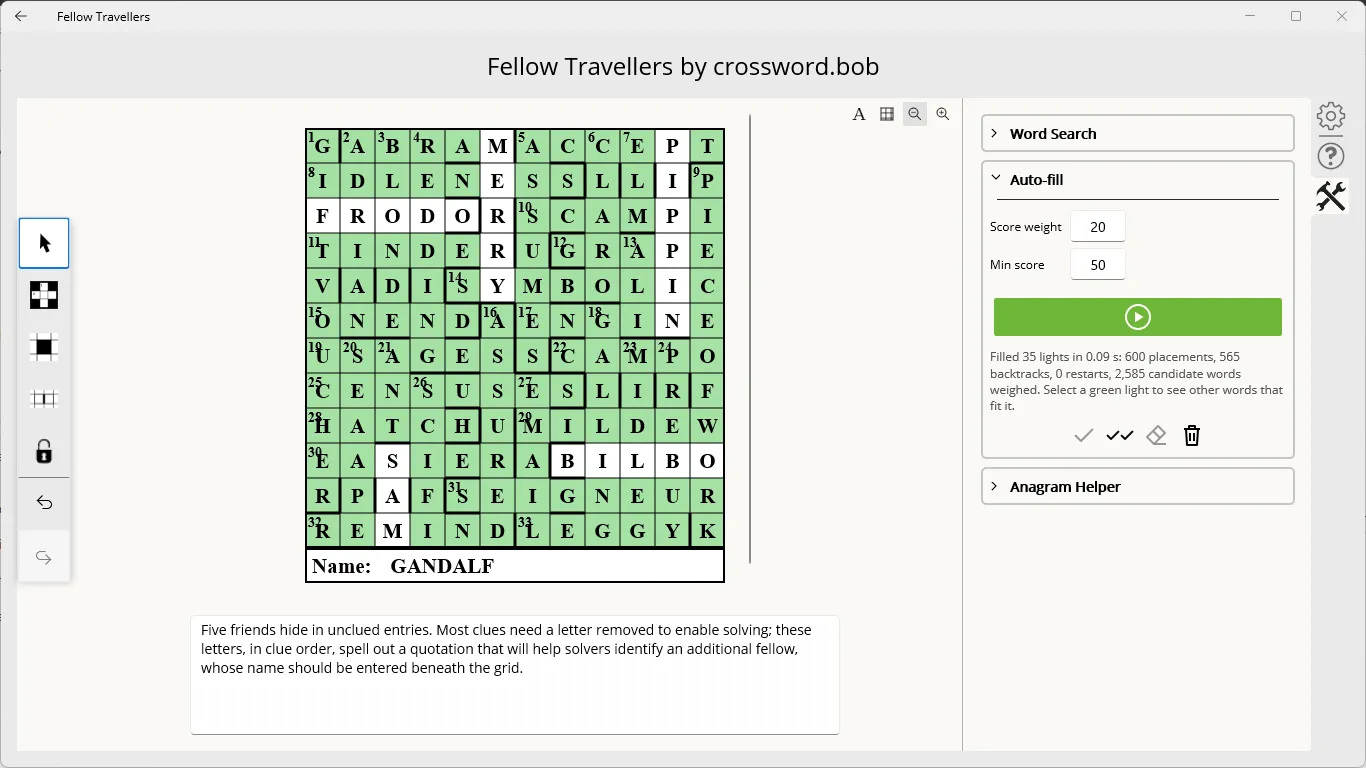
Section titled “Fill succeeded”If the auto-fill tool successfully completes the grid, it displays some statistics beneath the Go button. In the grid, answers that it selected are highlighted green to distinguish them from words or letters that were already present.
Once the auto-fill has completed, a bank of four buttons can be used to manage the results:
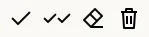
These are, from left to right:
- Accept: Accept the currently selected auto-filled word and make it permanent in the grid (turning it white).
- Accept all: Accept all auto-filled words and make them permanent in the grid.
- Clear: Removes the currently selected auto-filled word from the grid. This works similarly to the Clear light button in the Properties tab section, in that it only removes letters that are not part of another fully populated word (even if it is also auto-filled).
- Clear all: Removes all auto-filled words from the grid that have not been accepted.
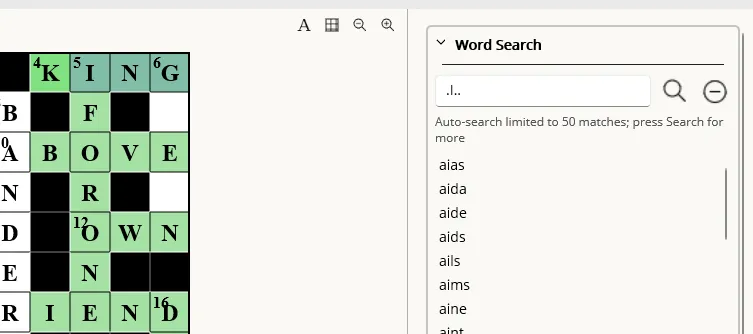
In addition, clicking any auto-filled light will populate the Word Search tool with the selected light’s pattern, with single-letter wildcards for any unchecked letters. This essentially allows you to find alternative words that may be swapped in without impacting any other words.
In the event that there are no acceptable alternatives for a light within the constraints of its intersecting lights, the Clear button can be used in conjunction with the Word Search tool. For example, in the following configuration:
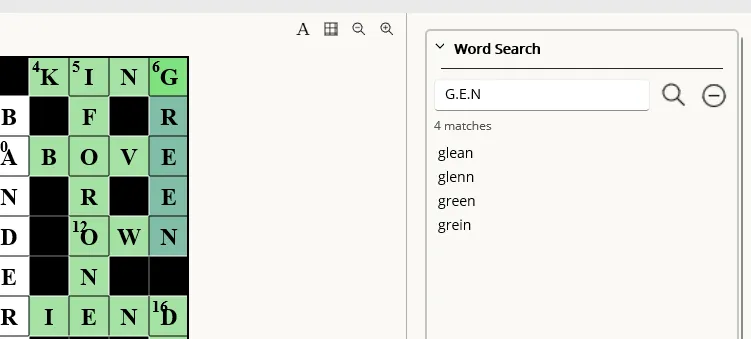
If you aren’t happy with either GREEN or any of the alternatives suggested by the Word Search tool, you can use the Clear button to remove the problematic word:
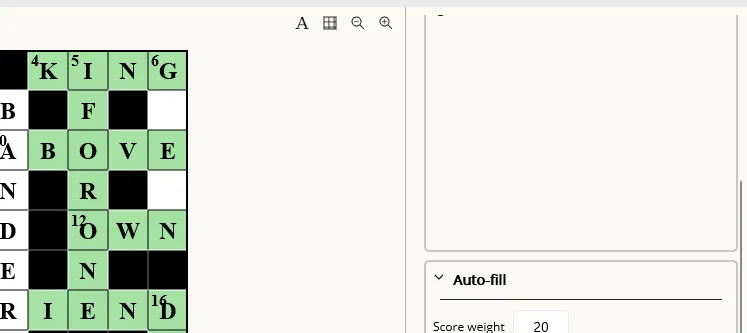
Now you can click on any of the intersecting words, and the Word Search tool will update to show alternatives for that word as well. The pattern will use a wildcard for the cell which intersected with the clear light so you can explore other possibilities.