The Grid
The centre of the Edit Page contains the grid itself:
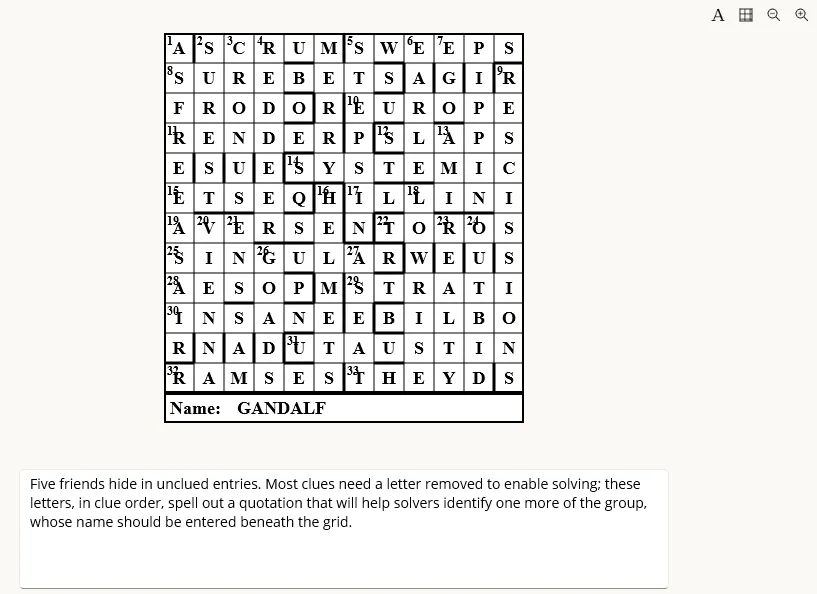
The grid
Section titled “The grid”Selection
Section titled “Selection”The grid is the main area where the crossword puzzle is displayed and edited. The grid’s layout in terms of lights, cells, blocks and bars and the tools that modify it are documented in Grid Layout. The one tool that carries over from there is the Select Tool:

With this tool active, you can select individual cells and lights within the grid. Clicking on an open grid cell will select both it and one of its containing lights:
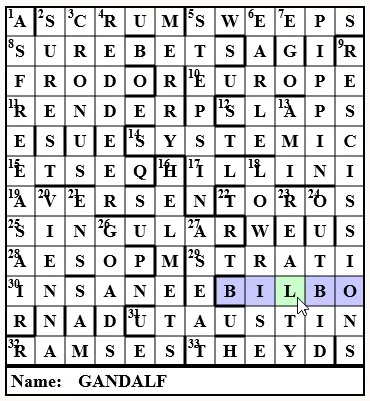
If the selected cell is part of multiple lights, clicking on it again will cycle through the different lights it belongs to. In a rectangular grid, this typically means alternating between the across and down lights that intersect at the selected cell.
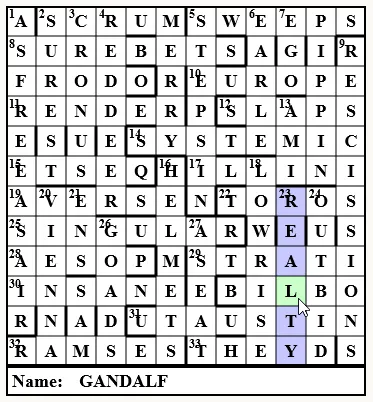
In a circular grid, merged cells mean some may belong to more than two lights.
When a light and cell are currently selected, holding Control while clicking on another cell will deselect the light and add the new cell to the current cell selection:
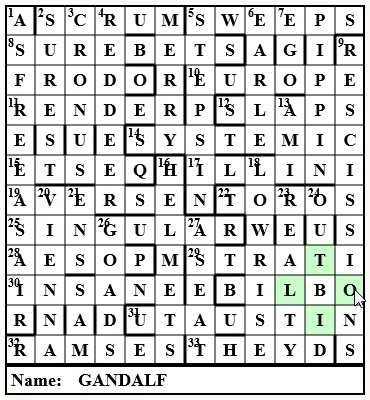
This allows you to set properties for all selected cells at once using the Properties Tab.
Navigating
Section titled “Navigating”You can navigate the grid using arrow keys on your keyboard. Within a selected light, pressing arrow keys in the same orientation as the light will move the selection along the light, or skip to the next light in that direction if the end of the current light is reached.
Pressing arrow keys perpendicular to the orientation of the selected light will leave the current cell selected, but switch the light selection to the intersecting light, if there is one.
Answers
Section titled “Answers”With a cell selected, you can enter the answer directly by typing on your keyboard. The input will fill the selected cell and advance the selection according to the current navigation rules.
If you make a mistake, you can use the Backspace or Delete keys to remove the input from the selected cell. Both operations will clear the selected cell regardless of whether or not there is a fully populated intersecting light (in contrast to the Clear Light button on the Properties Tab).
Toolbar
Section titled “Toolbar”At the top-right of the grid canvas there are four tools controlling the display of the grid:
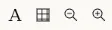
From left to right, the tools will :
- Toggle the display of answers within the grid.
- Toggle the display of light grid lines between blocked cells
- Zoom out/in
Zoom can also be adjusted with Ctrl+Mouse Wheel.
Preamble
Section titled “Preamble”If the crossword puzzle has a preamble (configured in the Crossword panel in the Properties Tab side-panel), it will be displayed below the grid. The preamble typically contains introductory information or instructions for the puzzle:
