The Light Tool
The Light Tool in Crossword Wrangler is used to draw lights directly onto the crossword grid, allowing you to specify both the position and length of a new light.
Typically, when producing UK-style grid layouts, where the degree of checking is generally lower than in US-style grids, using the Light Tool starting from an all blocked grid (see Creating a new grid) is a common approach. However, the same results can be obtained by using the Light Tool in combination with other tools, such as the Block Tool. It is also possible to use the Light Tool alone to create US-style grids or barred grids.
Using the Light Tool
Section titled “Using the Light Tool”- In the tool strip, select the Light Tool icon:

- Click and hold on the grid where you want the light to start or end:
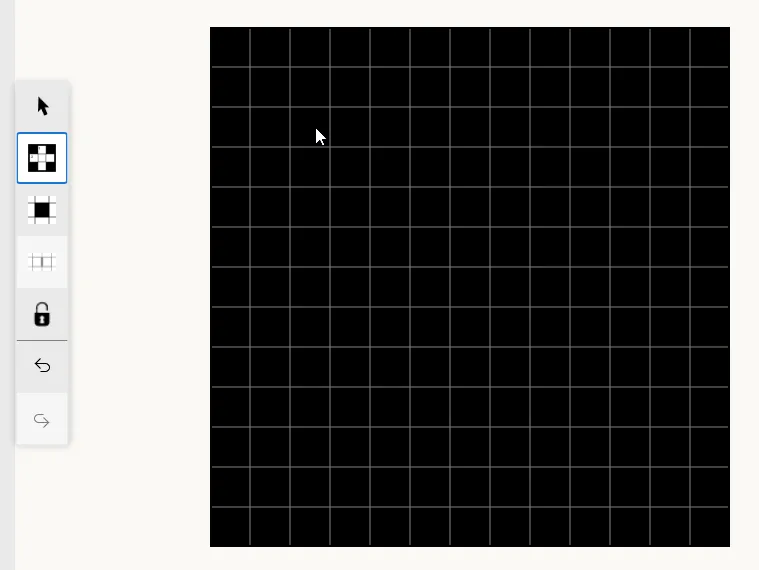
- Then drag to define its length. The light will dynamically adjust as you drag:
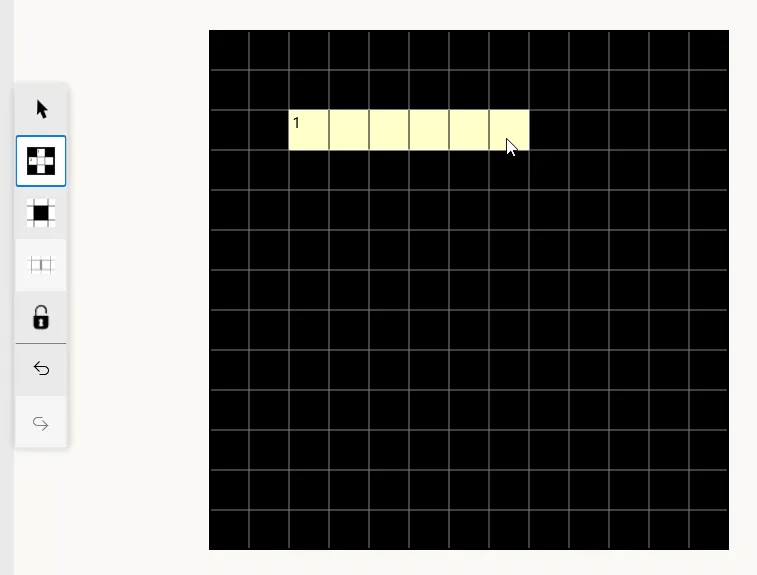
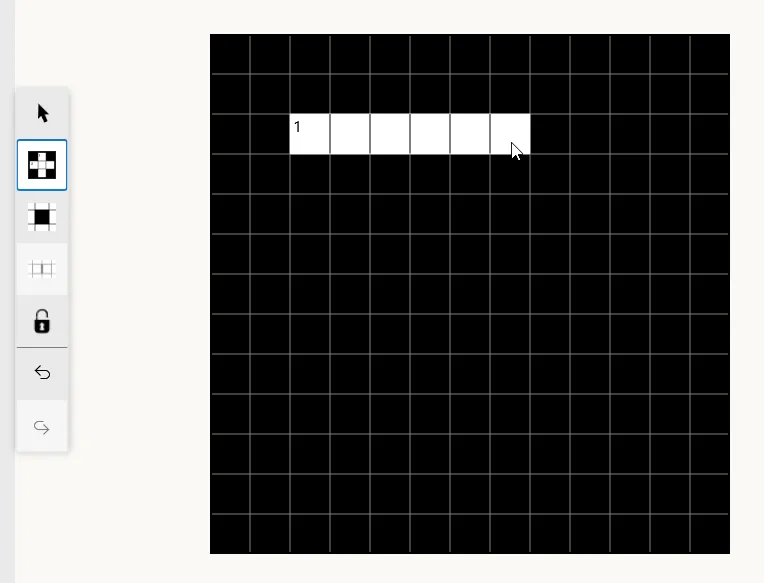
- Finally, release the mouse button to place the light.
Symmetry
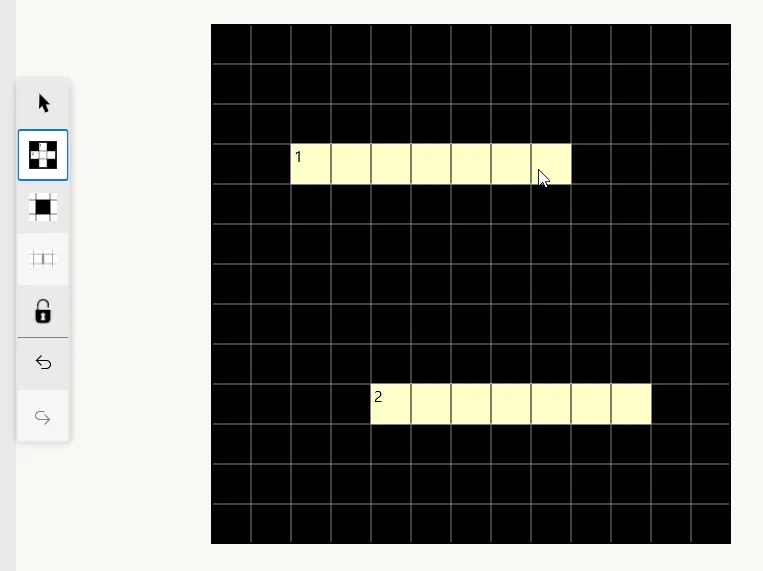
Section titled “Symmetry”The Light Tool also respects the grid’s symmetry settings. When symmetry is enabled, placing or adjusting a light will dynamically mirror the action according to the selected symmetry type. For example, with 180° rotational symmetry configured:
With some symmetries, the mirrored lights may meet and overlap with the same orientation, creating a single, symmetrically placed light. For example, with horizontal symmetry, dragging a new light towards the centre starts two lights:
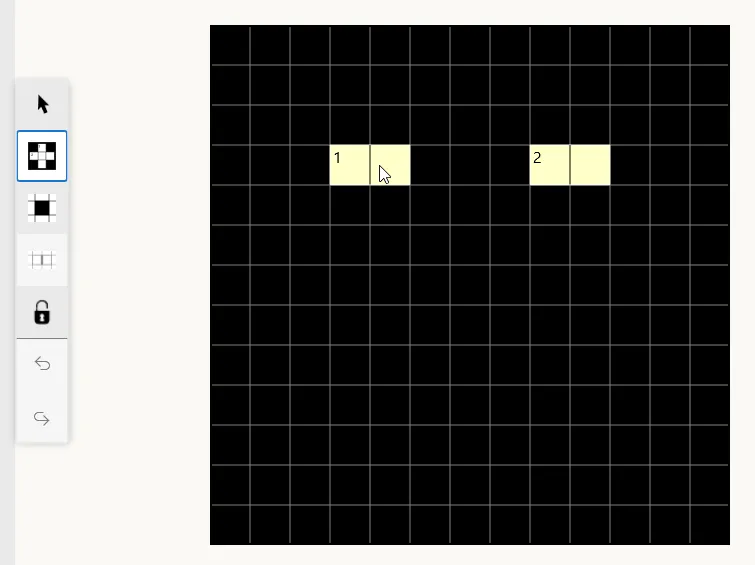
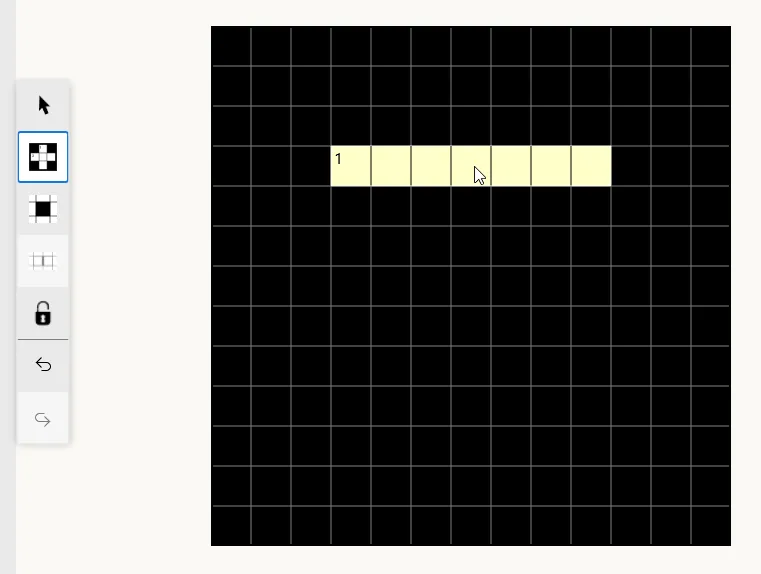
Continuing to drag the light towards the centre will result in the two lights merging into a single, symmetrically placed light:
Other symmetry types, such as 90° rotational symmetry or reflections about diagonal axes, may result in lights crossing each other perpendicularly. This is no different to creating two lights manually that intersect at right angles.
Relationship with the Allow Bars property
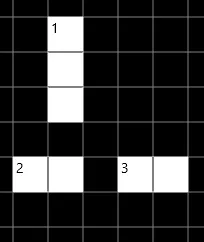
Section titled “Relationship with the Allow Bars property”As described in the Creating new items page, the Allow Bars property controls whether bars can be placed on the grid. Given an original configuration such as this:
-
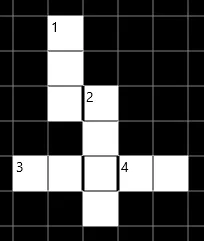
When Allow Bars property is on, the Light Tool will not allow lights in the same orientation to overlap, with the exception of lights overlapping their symmetric images. Additionally, new lights that pass adjacent to existing lights or open cells will be separated by a bar:
-
When the Allow Bars property is off, the Light Tool will still prevent lights from overlapping each other, but on releasing the mouse button, the new light will coalesce with any adjacent lights or open cells without inserting a bar, potentially creating new lights or extending/merging existing ones:
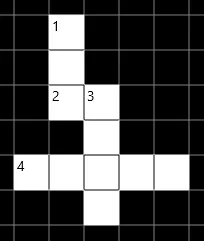
If the new light begins or ends adjacent to another light in the same direction, the two will merge into a single light.